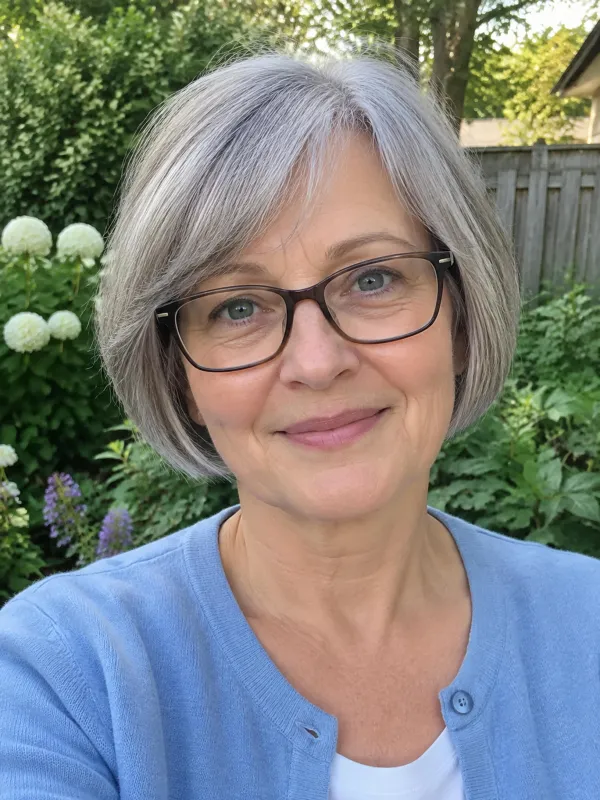

Remembrance Video Maker for a Quiet Tribute

Choose a photo of someone you want to remember, then pick a scene for a short imagined video. Add a second photo to share the moment, or make a remembrance video maker clip with one person on screen.

Choose a moment
Length

Upload only photos you have permission or legal rights to use.

Older womanYoung manWindow-Side Embrace
Example remembrance video maker result from two fictional people

Made With This Tool

How a Photo Becomes a Gentle Moving Moment

This remembrance video maker turns one or two uploaded photos into a short imagined scene. It generates new movement; it does not restore a recording or show real footage. The examples below were made on this page from fictional people. They were not edited after the MP4 was generated, so you can see the kind of quiet motion each scene can create before choosing your own. Use this remembrance video maker to preview the available scenes.

Create a Tribute Clip

Two Photos · Living Room

A Long Embrace Beside the Window

A 10-second vertical clip brings two portraits into one scene.

An older man waits beside a bright living room window. A younger woman enters from the edge of the frame, and they lean together cheek to cheek. Both faces stay turned toward the camera as they smile. This remembrance video maker example uses two separate photos to imagine a warm reunion, then holds on the shared moment until the clip ends. This remembrance video maker works from the portraits you provide.

  • Two people appear together
  • 10-second vertical MP4
  • Soft piano music included

One Photo · First-Person View

An Embrace Seen From the Camera

A 5-second vertical clip uses one portrait.

The older man stands near a window, turns toward the camera, and smiles. He walks closer with open arms and hugs toward the viewer. The camera represents the person watching, so no second person appears in the frame. This remembrance video maker scene can suggest a personal moment while keeping the image focused on the person in your uploaded photo. A remembrance video maker can create this first-person view from one portrait.

  • First-person camera perspective
  • Only one uploaded photo
  • 5-second vertical MP4

One Photo · Sepia Portrait

A Small Smile in a Quiet Room

A 5-second vertical scene retains the sepia appearance.

A young woman sits beside a window in a sepia-toned portrait inspired by an old photograph. She gives a slight nod and a gentle smile without changing the warm brown coloring. The generated scene adds motion, and small facial details may differ from the source. This remembrance video maker example shows how a still portrait can become a calm, short moment. Try this remembrance video maker scene with a clear portrait.

  • Original sepia look retained
  • A gentle smile and slight nod
  • An imagined scene based on a photo

Two Photos · Wide Frame

A Sofa Portrait for a Larger Screen

A 5-second 16:9 clip for a TV or slideshow.

Two women sit side by side on a sofa. The older woman, with grey curly hair, smiles and nods while the younger woman leans closer. The wide 16:9 composition leaves room to show both people together on a television or projector. Use this remembrance video maker scene when you want a short shared portrait to fit into a larger presentation. The remembrance video maker also supports a vertical frame.

  • Wide 16:9 composition
  • Two people seated together
  • Suitable for a screen presentation

Two Photos · Garden

Walking Arm in Arm Along a Garden Path

A 5-second wide clip shows a slow stroll.

An older man and a younger woman walk arm in arm toward the camera on a sunlit garden path. He gives her arm a light pat, and both smile as they continue forward. The wide frame suits family gatherings and slideshow screens. This remembrance video maker example gives two uploaded portraits a simple outdoor setting and a slow shared movement. Pick this remembrance video maker scene for a gentle garden moment.

  • 16:9 horizontal layout
  • Two people walking together
  • A bright garden setting

One Photo · Garden

A Slow Walk and an Outstretched Hand

One portrait becomes a 5-second vertical scene.

An older woman with a grey bob and glasses walks slowly down a garden path toward the camera. She smiles, then reaches one hand forward near the end of the clip. The scene keeps her face visible as she moves. This remembrance video maker example is built from one photo, so it can work when you want the person to appear alone in a gentle outdoor moment. Make a remembrance video maker clip from one clear photo.

  • One-photo garden scene
  • A hand reaches toward the camera
  • 5-second vertical phone format

One Photo · Beach

A Quiet Wave at Golden Hour

A 5-second vertical clip set on a calm beach.

An older woman with grey curly hair stands on a peaceful beach in warm evening light. She looks toward the camera, smiles, and waves with one hand while remaining in place. This remembrance video maker scene turns one photo into a small greeting that can fit a phone screen. The setting and movement are generated as an imagined moment rather than taken from a real recording. This remembrance video maker offers a quiet beach scene.

  • Golden-hour beach setting
  • A smile and a gentle wave
  • One-photo vertical video

Two Photos · Beach

Two Friends Waving at Sunset

A 5-second vertical clip features two people.

A young man in a black T-shirt stands beside a young woman in a denim jacket on a beach at sunset. They smile and wave toward the camera. The two-photo setup creates a shared scene that may suit a sibling, partner, or close friend. This remembrance video maker example shows one way to bring separate portraits into the same imagined setting. The remembrance video maker can place two portraits in a shared scene.

  • Two people share the frame
  • Both smile and wave
  • Vertical layout for phone screens

Where It Can Fit

Ways to Include a Short Tribute Clip

A Memorial Service

A horizontal 16:9 clip can appear on a television or projector during a service or reception. Place it among photographs in a slideshow, and tell guests that the scene was generated from photos rather than recorded as real footage. A remembrance video maker can provide a short clip for this kind of presentation.

A Celebration of Life

Add short clips to a presentation for family and friends. Gentle movement can offer a visual pause between photographs, spoken memories, or other parts of the program. Use the remembrance video maker to create a scene that fits the tone of the gathering.

A Day of Remembrance

A vertical 9:16 remembrance video maker clip can be shared in a family message or social post on a meaningful date. Consider how relatives may feel about seeing an imagined scene before sharing it widely. Explain that the movement was generated from a photo.

A Milestone for Someone Living

You can honor a living relative at a birthday, retirement, or anniversary. With two photos, the generated scene can show family members together in a quiet setting. The remembrance video maker is also suited to a personal celebration.

A Family Gathering

Create a short clip from older family portraits and include it in a reunion presentation or share it with relatives. It can sit alongside real photographs as one clearly labeled, imagined moment. A remembrance video maker clip can add gentle movement to the collection.

Choose Clear Portraits

Photo Choices That Help the Scene

Good Photos to Start With

  • Choose a clear image with one visible person
  • Use a sharp portrait facing the camera
  • Look for bright light and visible facial details
  • Crop group pictures to one person first

Photos That May Be Hard to Use

  • Group photos with several visible faces
  • Tiny, distant, or heavily blurred faces
  • Deep shadows across the face
  • Sunglasses or other strong facial obstructions
Create a Tribute Clip

Share With Care

A Few Things to Consider Before Sharing

01

The Scene Is Imagined

A remembrance video maker generates new movement from your photo. It does not recover a lost recording or show an event that really happened. The result may resemble the source image, but small facial details can change in the generated clip. Remember that a remembrance video maker creates an imagined scene.

02

Talk With Close Family

Before you show a clip at a service or post it online, check how immediate family members feel about it. People respond to grief in different ways. A short conversation can help you decide whether this kind of imagined scene is right for the occasion.

03

Use Photos You Have Rights To

Upload only photographs you have permission or legal rights to use. Respect the privacy and copyright of the people shown. This is especially important when you plan to share the finished clip with a group or post it publicly.

04

Label AI-Generated Media

When you share the clip publicly, make clear that AI generated it. That label helps viewers understand what they are watching, including children and relatives who may not expect an imagined scene made from a photograph.

Create a Tribute Clip

Build a Presentation

Arrange Several Short Moments Into a Longer Story

Each result is one 5- or 10-second scene. If you want a longer presentation, create several clips and combine them in a video editor. A remembrance video maker gives you individual moments to arrange; it does not assemble a longer film on this page. You can order the clips around photos, captions, or music that you add in your own editor. Use the remembrance video maker for individual scenes, then arrange them to suit your story.

Open With a Portrait

Start with the quiet room scene to introduce the person gently. A short smile or nod can create a calm beginning before you show other photographs.

Move Into the Garden

Follow the portrait with a garden path clip. The slow walk gives your presentation a change of setting while keeping the tone peaceful.

Add a Personal View

A first-person embrace can create a more intimate beat. The camera represents the viewer, and the person from the photo moves toward it.

Use the Beach at the Close

A beach wave can work near the end of a sequence. Warm evening light and a simple greeting provide a quiet visual pause.

Show Two People Together

Use two photos for a shared sofa, garden, or beach moment. This can help connect separate portraits within the same presentation.

End on a Still Portrait

Finish with a single-person scene if you want to return attention to the person being remembered. You can place a real photograph after it in your editor.

What This Page Offers

A Small Set of Ready-Made Scene Options

01

Four Scenes to Choose From

Pick a living room embrace, a quiet portrait, a garden walk, or a beach wave. The remembrance video maker uses a preset scene, so you do not need to write a detailed prompt. This remembrance video maker keeps the choices easy to understand.

02

Two Clip Lengths

Choose a 5-second or 10-second result to fit the moment you are planning. Each generation creates one short clip. The remembrance video maker lets you select either length before starting.

03

MP4 in Two Frame Shapes

Download a 768p MP4 without a watermark in vertical 9:16 or horizontal 16:9. Choose the frame that suits a phone, television, or slideshow. The remembrance video maker provides both frame shapes.

04

Piano Music Included

Every clip has soft instrumental piano with no lyrics. The page does not provide a sound-off switch, but you can replace the track in an editor after downloading. A remembrance video maker clip can be adjusted in your editor.

Plan Your Photos

Should You Upload One Photo or Two?

Use one portrait to keep the clip focused on one person, or add a second image when you want both people in the scene. Your choice changes who appears in the generated moment.

Keep the Focus on One Person

Upload one photo when you want the person you are honoring to sit, walk, wave, or approach the camera alone. Some scenes use a first-person view, where the camera represents the viewer. A remembrance video maker clip made this way keeps the frame centered on the person in Photo 1. This remembrance video maker option is suited to a single-person moment.

Bring Two Portraits Together

Add a second photo when you want two people to share a scene. The tool can place them together for an embrace, a garden walk, or a sofa portrait. Choose separate photos with one person in each so both faces are easy to see in the source images. The remembrance video maker uses both uploads to create the shared scene.

Choose for the Moment You Want

A single image can suit a tribute or a first-person scene. Two images can suggest a shared memory between people. Think about where the clip will appear and what feels comfortable for the family. The remembrance video maker creates an imagined scene, so describe it honestly when you share the result. Choose a remembrance video maker scene that feels right for your plans.

Clip Details

Quiet Tribute At a Glance

QuestionDetails
File typeA short imagined scene in 768p MP4 format, with no watermark.
PhotosPhoto 1 is required and should show one person clearly; Photo 2 is optional.
People shownPhoto 1 appears by itself, or both people appear when you add Photo 2.
Scene optionsWindow-side embrace, soft room portrait, garden stroll, or golden-hour greeting.
LengthChoose 5 or 10 seconds.
FrameChoose vertical 9:16 for phones or horizontal 16:9 for televisions and projectors.
SoundSoft instrumental piano is included. The page has no sound-off option.
VoiceThe clip has no voice, speech, spoken message, or lip sync.
CreditsA 5-second clip costs 20 credits; a 10-second clip costs 40 credits.
New account creditsNot included in this page's pricing details.
ProcessingMost clips finished in under a minute in our tests; busy periods may take a few minutes.
Failed generationCredits are returned automatically if generation fails.

Create a clip in your phone or computer browser and download the MP4; there is no app to install.

Create a Tribute Clip

Make a Clip

From Photo to a Short Tribute

Create a Tribute Clip

01

Upload One or Two Photos

Choose a clear portrait of the person you want to honor for Photo 1. Add your own photo as Photo 2 if you want both people in the scene. The remembrance video maker accepts one required photo and one optional photo.

02

Set the Scene and Format

Pick one of four scene templates, select 5 or 10 seconds, then choose a vertical or horizontal frame. The remembrance video maker uses the options shown on this page. Choose the format that suits where you plan to show the clip.

03

Generate and Save the MP4

Start the generation and keep the page open while it processes. When the clip is ready, download the MP4 to your device and add it to your presentation if you wish. Your remembrance video maker result is a short file you can arrange in an editor.

Credit Plans for Short Tribute Clips

One balance for every AI zombie video you make. Pick a monthly plan by how many clips you want, or buy a one-time pack with no subscription.

Save 30% billed annually

Flexible monthly subscription.

Lite Monthly

The cheapest way to start. Every model, a small monthly budget.

$12.99/mo

Renews monthly, cancel anytime.

400 credits

≈ 6 AI zombie trend videos

3.25¢ / credit

  • 9:16 vertical · 768p · Ready for TikTok and Reels
  • Credits reset every billing month
  • Access to all models
  • Watermark-free outputs
  • Buy an add-on credit pack
  • Standard support

Starter Monthly

A few zombie love story clips a month for you and your friends.

$29.9/mo

Renews monthly, cancel anytime.

1,000 credits

≈ 16 AI zombie trend videos

2.99¢ / credit

2 parallel tasks

  • 9:16 vertical · 768p · Ready for TikTok and Reels
  • Credits reset every billing month
  • Access to all models
  • Watermark-free outputs
  • Buy an add-on credit pack
  • Standard support

Standard Monthly

Popular

Steady output for a creator account riding the trend.

$49.9/mo

Renews monthly, cancel anytime.

2,000 credits

≈ 33 AI zombie trend videos

2.50¢ / credit

3 parallel tasks

  • 9:16 vertical · 768p · Ready for TikTok and Reels
  • Credits reset every billing month
  • Access to all models
  • Watermark-free outputs
  • Buy an add-on credit pack
  • Priority support

Advanced Monthly

High volume for pages and agencies posting every day.

$89.9/mo

Renews monthly, cancel anytime.

5,000 credits

≈ 83 AI zombie trend videos

1.80¢ / credit

5 parallel tasks

  • 9:16 vertical · 768p · Ready for TikTok and Reels
  • Credits reset every billing month
  • Access to all models
  • Watermark-free outputs
  • Buy an add-on credit pack
  • Priority support

Questions Before You Create a Clip

Details about photos, scenes, format, sound, and credits for your remembrance video maker.

Create a Tribute Clip
What does a remembrance video maker create?

It turns one or two uploaded photos into a short imagined scene. Choose a living room embrace, a quiet portrait, a garden walk, or a beach wave. The result is a generated MP4 with soft piano music, not restored archival footage or a real recording. You can use the short clip in a presentation or save it for yourself.

How do I use a remembrance video maker with my photos?

Upload one clear photo as Photo 1, then add a second portrait if you want two people to appear together. Pick one of the four scenes, choose 5 or 10 seconds, and select a vertical or horizontal frame. Start generation and keep the page open. When the MP4 is ready, download it to your device.

Can I create a clip from just one photo?

Yes. Photo 1 is required, while Photo 2 is optional. With one photo, the scene focuses on the person shown there. Depending on your choice, they may smile in a room, walk in a garden, wave at the beach, or approach the camera in a first-person embrace scene. A remembrance video maker can create each of these scenes from one portrait.

What does a 5- or 10-second clip cost?

A 5-second generation costs 20 credits, and a 10-second generation costs 40 credits. The page shows the credit option before you create the clip. Monthly plans start at $12.99 a month for 400 credits. Choose a plan based on how many clips you expect to make.

Can I turn off the piano music?

The page does not offer a sound-off switch. Every clip includes soft instrumental piano without lyrics or dialogue. After downloading the MP4, you can use a video editor to replace the track if you want a particular family song or prefer different audio for your presentation.

Does the result show real footage of the person?

No. The generated scene is an imagined moment created from the uploaded photo. It does not restore a historical recording or prove that an event occurred. Facial details may also differ slightly from the photo. Tell viewers that the clip was AI generated when you present or share it.

Which photo should I upload for a clearer result?

Choose a sharp photo with one person facing the camera and enough light to see the face. Crop a group image before uploading it. Very small faces, blur, deep shadows, sunglasses, or other obstructions can make the generated details less consistent. Photo 2 should also show one person clearly if you want two people together.

Can I make a longer memorial presentation with these clips?

Each generation creates one 5- or 10-second clip. You can create several scenes, download each MP4, and arrange them in a standard video editor to make a longer presentation. Add photographs, captions, or another soundtrack in your editor as needed; this page creates the short clips themselves. Use the remembrance video maker to create the individual moments first.

What happens if the generation fails?

If a generation fails, the credits used for that clip are returned automatically to your account. If a photo upload fails, try uploading the image again. Keep in mind that processing can take longer at busy times, so leave the page open while your clip is being created.

Where can I find other clips from ZombieAI?

ZombieAI is an independent site for AI-made video scenes. You can explore the zombie story on the home page, or browse other available scene pages and plans from the links on this site. This tribute tool uses the same account and credit balance as those pages, so your plan works across the site.

More on ZombieAI

Explore This Site

Make Space for

A Quiet Tribute

Choose a photo and a gentle scene, then save a short imagined moment as an MP4. This remembrance video maker helps you create a clip for a quiet tribute.

Create My Tribute Clip

20 CREDITS FOR 5 SECONDS

Make Space for

Create a Tribute Clip